EasyCAD · EasyBridge · AI
Darwin does not talk about your drawing. It works in it.
It is not a chat window stuck on the side. It is an assistant that sits inside AutoCAD and sees into your drawing, into the bridge model and into the reinforcement. Which is exactly why it matters what you show it — lines, or objects.
Introduction — Where it came from
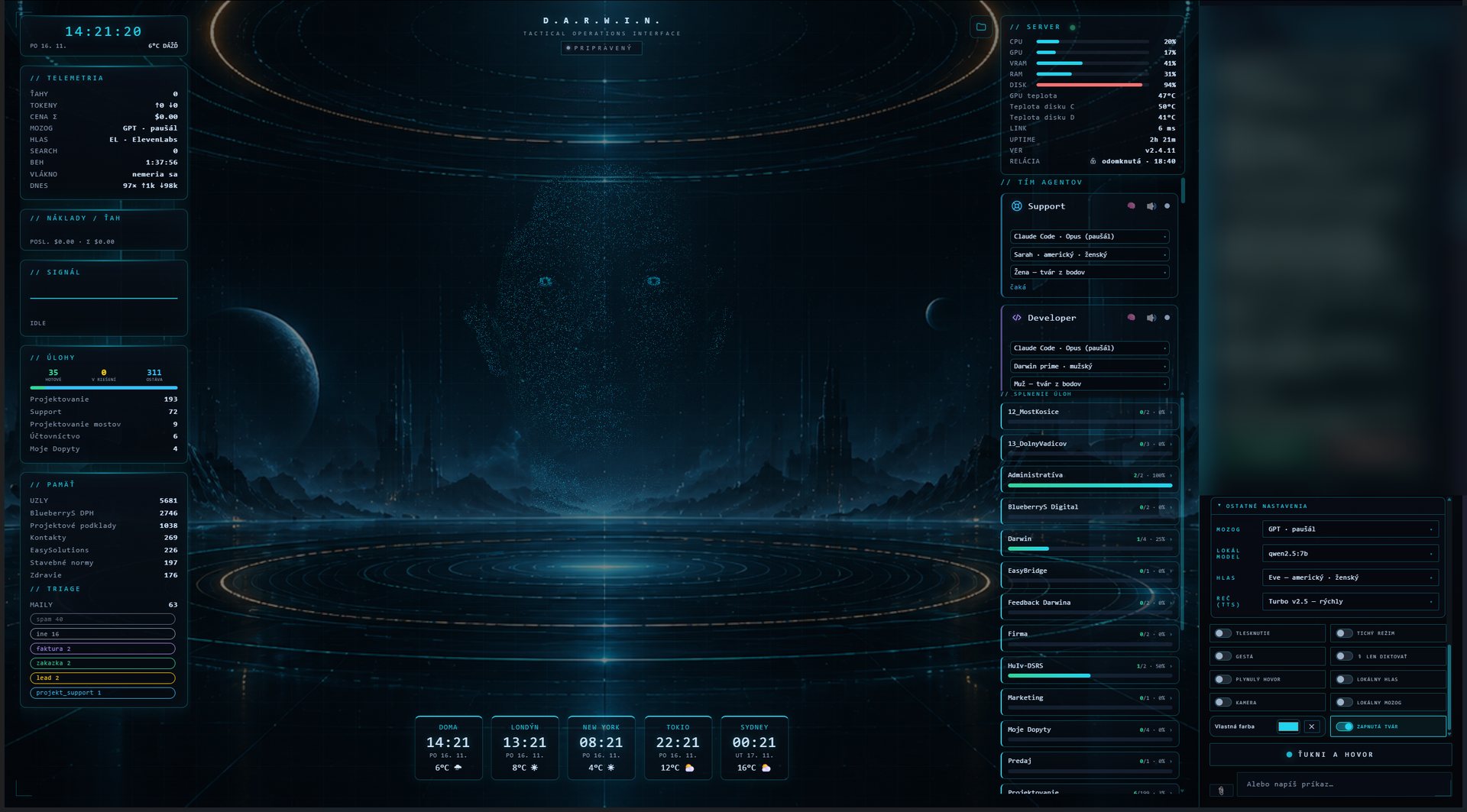
Building AI assistants is not a sideline for us. Darwin is a product of its own that we develop and run — it has its own site, darwinaiassistant.com, its own interface, memory, team of agents, mail triage, calendar, tasks and knowledge base. What now lives in EasyCAD is not an attempt at an "AI feature". It is that same assistant, seated directly inside AutoCAD.
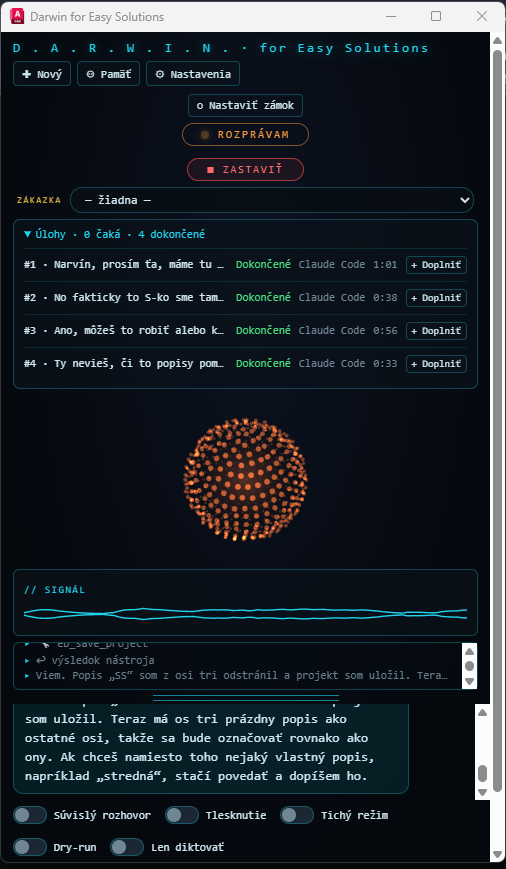
That is why we could integrate it all the way. This is not a chat box forwarding questions somewhere outside. There are two Darwins that know each other: the large one runs on your machine, outside CAD, and the small one lives inside EasyCAD. And they can work together.
You hand the task to the large Darwin — from your computer, by voice, or from your phone when you are on site or in the car. From there it runs on its own:
When AutoCAD is not running and cannot be started, the task waits in the queue and runs as soon as the machine is available. Nothing is lost and nothing is carried out blindly.
Why this comes first: everything else in this article — the layers, the tools, lines versus objects, dry run — holds just the same whether you are sitting in front of the screen or three hundred kilometres away from it.
Contents
Chapter one — What it is
Darwin is an AI assistant built directly into EasyCAD. You open it with the AE_AI command (DARWIN and AE_DARWIN do the same) and type — or say — what you need. Settings live under AE_AISETTINGS.
The difference from an ordinary chat fits in one sentence: Darwin does not talk about your drawing, it works in it. You will not get advice along the lines of “run command XY and click here and there”. Darwin looks at the state of the drawing itself, decides for itself and makes the change itself. If it needs more drawings, it opens them — and often it does not even open them, because it can read a DWG straight from the file in memory without disturbing you.
It is also the small Darwin, connected to the large one — the assistant running on your machine outside CAD, with calendar, mail, tasks and memory. The large Darwin can push a task into a queue for it; when AutoCAD is not running, the task simply waits. That is how you can hand it work from your phone.
It answers short and to the point. That is deliberate: the answer should be something you can listen to out loud, not a report you have to read. When it changes the drawing, it confirms in one sentence. When you ask a question, it answers plainly. Long recaps are something you ask for.
Chapter two — Its field of view
This is the key to everything that follows. Darwin does not have one view of your work but several — and each one speaks a different language.
| Layer | What it sees there | Tools |
|---|---|---|
| AutoCADthe raw drawing | Entities, layers, texts, blocks and their attributes, xrefs, dimensions, styles, layouts, 3D solids, DSD plotting, DWGs on disk without opening them, Word and Excel. | 154 |
| EasyCADthe named drawing | Element descriptions (name, material, material class, quantity, weight, station, stage), BIM property sets, surfaces, pipework, setting-out points, the title block table, drawing setup. | 59 |
| EasyBridgethe bridge model | Alignments, stations and station groups, edges, cross sections, bearing axes, piers and abutments, bearings, beams, surfaces and terrains, geology and boreholes, prestressing tendons, surrounding objects, construction objects, reinforcement, superelevation. | 144 |
| EasyRebarreinforcement in the drawing | Elements and their parts, bar items, catalogue shapes, individual placements, dimensions, spacings, variable-spacing zones, weights, sections. | 14 |
| EasyBoQthe bill of quantities | BoQ items, Cenkros import and export, OTSKP, links to drawing layers. | 10 |
Over 380 tools in all. But the number is not the point. The point is that three of those five layers talk about objects — and one talks about lines.
Chapter three — The heart of it
This is the one thing to take away from the whole article. With lines a human is better than Darwin. With objects the tables turn.
Say you show it a piece of a drawing and tell it “dimension this”. What does Darwin actually see? It reads the entities and gets back a list:
That is all. No meaning. Is that twelve-metre line the deck, a kerb, or a construction line someone forgot to delete? Geometry cannot tell you. Darwin can guess from the layer, from the length, from what is usually the case — and that is exactly why it sometimes guesses wrong. Not because it is stupid. Because nobody left that information in the drawing.
And let us be blunt about it: with raw lines a human is better than Darwin. You look at the drawing and know in a second that it is an abutment — you know the conventions, you know what is drawn how, you see the whole and the context around it. Darwin has only what the drawing hands back: type, layer, length, angle. So with lines it needs more from you than a colleague would.
This is precisely the situation where it pays to be narrow and to check: “dimension the horizontal lines on layer OUTLINE from the left end” works far better than “dimension this”.
Now the same thing, but with an abutment in the bridge model. Darwin asks for the abutment and gets back not geometry but a thing: its name, the bearing axis it sits on, its station, the soffit edges of the deck, the top of the bearing shelf, the height of the ballast wall, the founding level, the wing wall lengths, the terrain it is tied to, and the construction object it belongs to.
And when you say “calculate the parameters of abutment A1”, no guessing starts. What starts is a calculation that knows what it is doing: from the deck soffit it derives the top of the bearing shelf, from the deck edge and the road surface the height of the ballast wall, from the cone slope the wing wall lengths, and from the embankment height it decides whether the shelf goes on piles without a footing or on a footing sunk below the lowest terrain around its perimeter.
And when an input is missing, it does not invent one. The tool is written so that without a terrain assigned, founding cannot be decided at all — it returns the list of available terrains and Darwin asks you which one to use. It does not pick for you.
Here the tables turn. With objects Darwin takes in the whole thing at once — not just that one abutment, but what it sits on, what affects it and what changes when you move something on it. A human has to assemble those relations from several windows and keep them in their head; Darwin gets them in one piece. That is why with objects it does not need a precise brief — telling it what the result should be is enough.
Darwin sees shape, meaning it has to infer. Here a human is better — you look and you know what it is. Darwin needs more from you, and the result needs checking.
Darwin takes in the thing and its relations, the whole at once. It understands what it is changing and what that affects. When something is missing, it asks instead of guessing.
Reinforcement is no different, only the contrast is even sharper. To AutoCAD a bar is a line. To EasyRebar it is an item with a number, a catalogue shape, a diameter and dimensions — and that item has placements, each with its own count, spacing and position.
So when you tell Darwin “change the diameter of item 12 to 16”, it does exactly that — and at the same time tells you a consequence you would never read out of lines: the diameter changes in every placement of that item, including placements in other elements. It is one definition used in several places. When you want to change a single row, you change the placement, not the item.
Darwin knows this distinction because the tool description tells it so. Working with lines, it would have changed a line weight and the schedule would have quietly stayed wrong.
Chapter four — The whole
Darwin knows you have a bridge. It knows where it starts and ends, which piers and abutments belong to it, which edges make it up and which construction object uses it. Ask “how many piers does M1 have” and it answers — without you explaining anything.
And here is the interesting part: a bridge is not a single record in a file waiting to be read. Darwin sees it because it understands how the model is put together.
It does that on its own. It takes the station group, works out its range and length, finds the edges tied to those stations, the axes within the range, the piers and abutments on them and the objects that use them — and gets one bridge. As a whole, at once, relations included. Exactly what you would expect from a colleague who has looked at the project.
This is the ability that disappears with raw lines. There you would have to tell it which lines belong to M1 — from lines it cannot be assembled. Here it derives it from the model itself.
A construction object works the same way: it is the authoritative composition — who its members are. Abutments, piers, surfaces, structures, sections. When you say “draw construction object 201”, Darwin does not draw lines based on what it thinks; it draws exactly those members that have drawing enabled.
Chapter five — In practice
A few things that work well in practice.
“Run AE_OPORA, put 0.4 in there and confirm.”
“Calculate the abutment parameters on bridge M1 from the deck soffit, show me the numbers first.”
Darwin first looks at the state (layer list, drawing summary, object list) and only then acts. Prescribe the procedure and you tie its hands; state the goal and it adapts the procedure to what is actually in the drawing.
“Show me what you would change first” — a large share of the tools can run in dry run mode: they compute and report the change but do not write it. For the automatic abutment calculation the preview is in fact the default; writing has to be asked for.
“Correct the material in the notes to C30/37” is not the same as replacing a string. Darwin reads the texts, decides the factually correct new content for each one and adjusts related data too — units, consequences. When you want a literal replacement, say so.
Chapter six — Identity
Not everything is a model. Plenty of drawings are, and will long remain, “just lines” — inherited background drawings, old projects, other people's DWGs. That does not leave Darwin helpless. It means one extra step is worth taking: give those lines an identity. After that they are no longer lines.
It is the same principle as the bridge model, only from the bottom up: every time you tell a line what it is, you move Darwin from guessing to understanding. And the pleasant part — you can have Darwin do that labelling itself. “Name the columns on layer COLUMNS after the texts next to them and set their material to C30/37.”
And when there is no other way: Darwin can open an image or a PDF and look at it. A vector PDF it imports exactly. From an image it can redraw clean geometry from the dimensions — and it will tell you that this is a redraw from dimensions, not a pixel-accurate outline. When a faithful shape is needed, it traces the raster into polylines. It always tells you which of those routes it took.
Chapter seven — Architecture
Darwin has no single “build the bridge” button. It has many small tools that can be combined. That is deliberate, and there is a simple test behind it:
When an AI has only macros it does not decide — it only picks which macro to run. And when the brief does not match any of them exactly, the task fails. So the tools in EasyCAD are built like this:
Chapter eight — Limits
And one limit worth knowing: memory. It pays to store principles and domain facts in Darwin's memory, not recipes for specific tasks. A recipe is fragile — you have to hit the wording, and it does not generalise. Tell it “remember that we measure the ballast wall from the deck edge” and that is a fact it will use every time. Store a precise ten-step procedure and it will only use it when the task looks exactly the same.
Chapter nine — Overview
Roughly, so you know what is worth trying.
Drawing summary, layers (create, rename, merge, freeze, purge), linetypes, entity reading with geometry, conditional bulk edits by property, deletion, transforms, offset, mirror, array, selection by layer / type / size / text, hatches, regions, 3D solids and booleans, meshes, dimensions and multileaders, text and dimension styles, UCS, viewports and layouts.
Finding blocks, definitions, attributes (in bulk and conditionally on the current value), making a block from a selection, wblock, xrefs (list, bind, attach, edit). DWGs on disk it can read and even edit without opening them; when it should work quietly, it loads the drawing into memory and afterwards saves or discards.
Layouts even from unopened drawings, DSD with the PC3 and CTB from the Easy settings, plotting to PDF. Title block table: finding the sources stored in the drawing, first insertion, updating from the data spreadsheet, naming layouts by code. Word and Excel: reading, writing, inserting at an anchor, replacing placeholders, formulas — always directly, never through an external script.
Opening a project, bridge overview, alignments and stations, edges and cross sections, bearing axes, piers and abutments including automatic calculation, bearings and their catalogue, beams, surfaces and terrains, geology and boreholes, prestressing tendons and their geometries, surrounding objects, construction objects and their members, drawing a construction object into the drawing, reinforcement, superelevation, converting a point to a station.
EasyBoQ: a new or existing bill of quantities, Cenkros import and export, items, OTSKP, links to layers. EasyRebar: elements, items, shapes, placements, changes of diameter and dimensions, variable spacing in zones, new items and placements, moving and deleting a placement.
In one sentence
Darwin is as strong as the amount of meaning you leave in your data. With lines it is a capable helper that needs more from you than a colleague would. With objects in EasyBridge it is a colleague who takes in the whole, understands what it is doing — and knows when to ask.

— The Easy Bridge® team, bridge engineers with over 20 years of 3D design practice